
Choose the workspace that matches your materials
A project pack might contain a PDF introduction, a photographed diagram and an exercise from another PDF. Converting every item to a screenshot first adds work and discards text that could otherwise remain selectable. Add the originals to one workspace instead.
| Your materials | Use | Access |
|---|---|---|
| Only JPG, PNG or WebP images | Images to PDF | Free |
| Selected pages from one PDF, without manual region crops | PDF workspace → New PDF | Free |
| Multiple PDFs, PDF + images, or manually cropped regions | PDF workspace → New PDF | Pro |
Build a three-page pack from mixed sources
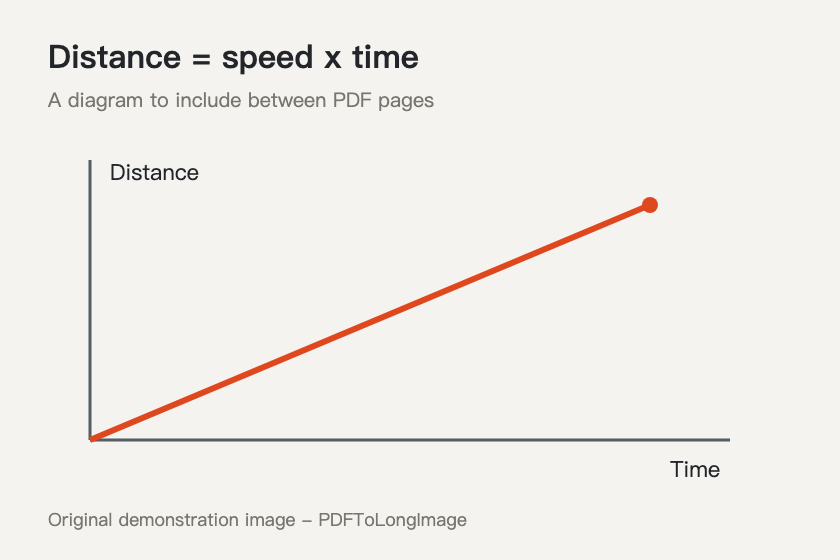
Try the supplied lecture PDFs with the diagram image. The goal is A1 → diagram → B2. Select pages using their position in each original PDF, not the page count of the new document.
- Add lecture-a.pdf, diagram.png and lecture-b.pdf to the PDF workspace.
- Set A to page 1 and B to page 2. Keep the diagram image selected.
- Drag the selected content into A1 → diagram → B2 order. Rotate the image if needed; optionally crop a useful region from a page.
- Choose New PDF. The same selection and edits are used, and image-format settings are hidden.
- Download the PDF and check all three pages at a readable zoom. A mixed-source export requires Pro.
What happens to page size, text and image quality?
In the PDF workspace, original PDF pages keep their page dimensions and supported text and vector content. A cropped page uses the chosen visible region. Images become individual PDF pages in their original proportions; this workflow does not automatically turn every page into A4 or Letter. For image-only files requiring those paper sizes, use Images to PDF.
An image or scanned PDF does not gain selectable text. This tool does not perform OCR. Some protected PDF pages cannot be copied directly; after opening with the required password, those pages may be rendered as images, and the tool reports that fallback.
Long-image settings such as PNG versus JPG, image width, gaps and background do not lay out the PDF. New PDF creates separate pages. Enlarging a low-resolution photo does not recover missing details, so use the best available source image.
One editing pass, two useful deliverables
Keep a PDF for page-by-page reading and printing. Switch to Long image for a continuous visual to send in a chat or read by scrolling. The order, rotations and crops stay in place; you do not need to repeat the editing.
Before creating a long image for a particular upload form, check the destination’s accepted format, dimensions and file-size limit. A single image can still be too tall or too large for another service. Exporting a PDF here does not certify compliance with a third-party submission rule.
Save the source project when revisions are likely
An exported PDF is a finished file, not an editable workspace backup. With Pro, name and save the project to retain the original files, selected pages, order, crops, rotations and output settings locally.
Reopen it from My projects in the browser that saved it. It does not sync through your account, and clearing browser site data deletes it. Keep a separate copy of the originals and finished exports.
Questions and answers
Can I insert an image between pages from different PDFs?
Yes. Add all the files to the PDF workspace, select the PDF pages and image, and arrange their thumbnails in the final order. This mixed-source workflow requires Pro.
Is the new PDF a single long page?
No. Each selected page or crop becomes a separate PDF page. Use Long image for a continuous image.
Does the PDF keep selectable text?
Supported original PDF pages retain text and vectors. Photos, scanned pages and protected pages rendered through the image fallback do not acquire selectable text; there is no OCR.