
Prepare two clear, tightly cropped images
Photograph each side straight on, in even light, with all document edges visible. Crop away the table or surrounding background in your photo editor before adding the files. This tool preserves the image proportions; it does not automatically detect document borders or correct perspective.
The width field applies to the entire image. A card photographed in the middle of a large background will print smaller than the chosen width. Keep the front and back in the same reading direction and avoid blurring small text.
Arrange both sides on one page
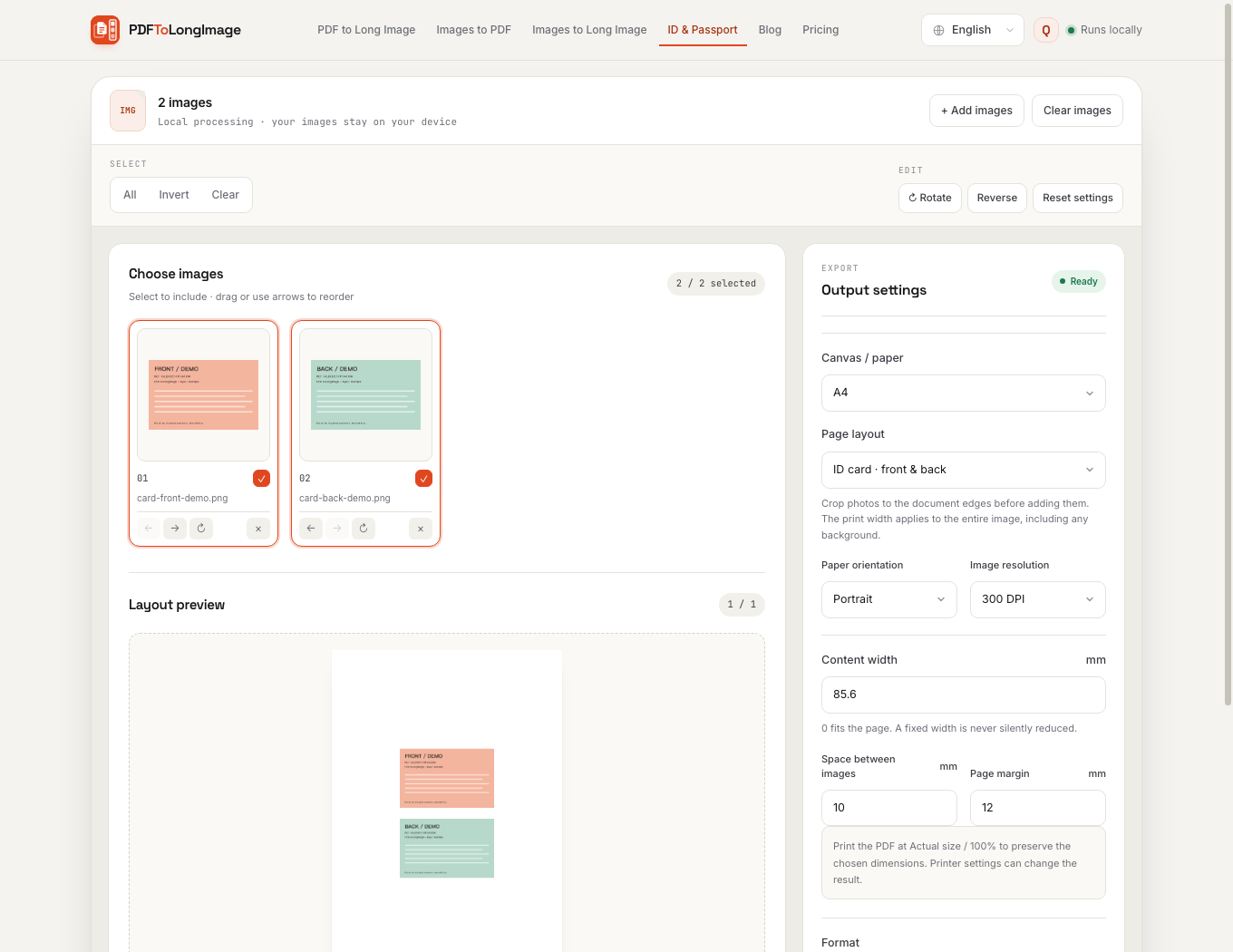
The first selected image goes above the second. Reorder with dragging or the thumbnail arrows if the sides are reversed. No image is silently discarded.
- Open ID & Passport Print and add the front and back images.
- Choose ID card · front & back and A4. Letter is also available.
- Set the content width to match your document. The preset starts at 85.6 mm; other cards can require different dimensions.
- Adjust the gap and page margins. Check the preview shows both sides, correctly oriented.
- Choose PDF and download. Print at Actual size / 100%, then measure a test copy if physical size matters.
Physical size, image pixels and print scaling
A4 defines the paper size, not the card size. The content-width field controls the image’s width on that paper. The preset is a starting point, not automatic recognition of every identity document.
Use the PDF when print dimensions matter. An exported image has pixel dimensions, but another app may print those pixels at a different size. Adobe distinguishes Actual size, which prints without scaling, from Fit, which can enlarge or reduce a PDF page. Check the printer’s paper size and scaling before printing.
Choose PDF for printing, PNG or JPG for an image copy
The default PDF contains exactly one page with both sides. PNG and JPG use the same page arrangement. PNG avoids JPEG compression artifacts around text; JPG can be useful when the destination requires that format.
300 DPI is the default raster resolution for the page; 150 DPI is also available. Increasing the export resolution cannot restore detail missing from a low-resolution photograph. The tool warns when source pixels are limited at the chosen print size.
| Goal | Output | Check |
|---|---|---|
| One paper copy | Single-page PDF | Actual size / 100% |
| One image with both sides | PNG | Small text and all edges |
| An upload that requires JPEG | JPG | Accepted dimensions and file size |
Avoid common layout mistakes
The separate Images to PDF tool creates one page per image. For both sides on the same page, use this dedicated page-layout tool, or choose A4/Letter in Images to Long Image. Both entries share the same compositor.
If the chosen width, gaps and margins do not fit, the tool asks you to adjust them instead of silently shrinking the content. The card layout accepts at most two selected images; use Custom arrangement for more. This is a document-copy utility, not a certification or an identity-verification service.
Questions and answers
Will the front and back be on one PDF page?
Yes. The dedicated ID layout exports one PDF page containing both selected images. This differs from Images to PDF, which normally creates one page per image.
Does 85.6 mm guarantee original-size printing?
It sets the entire image width. Crop to the document edges, check the original dimensions, and print the PDF without scaling. Other card sizes require a different width.
Are my ID images uploaded?
No. Decoding, arrangement and export run locally. The printing tool does not save a project automatically or upload the document images.